Introduction
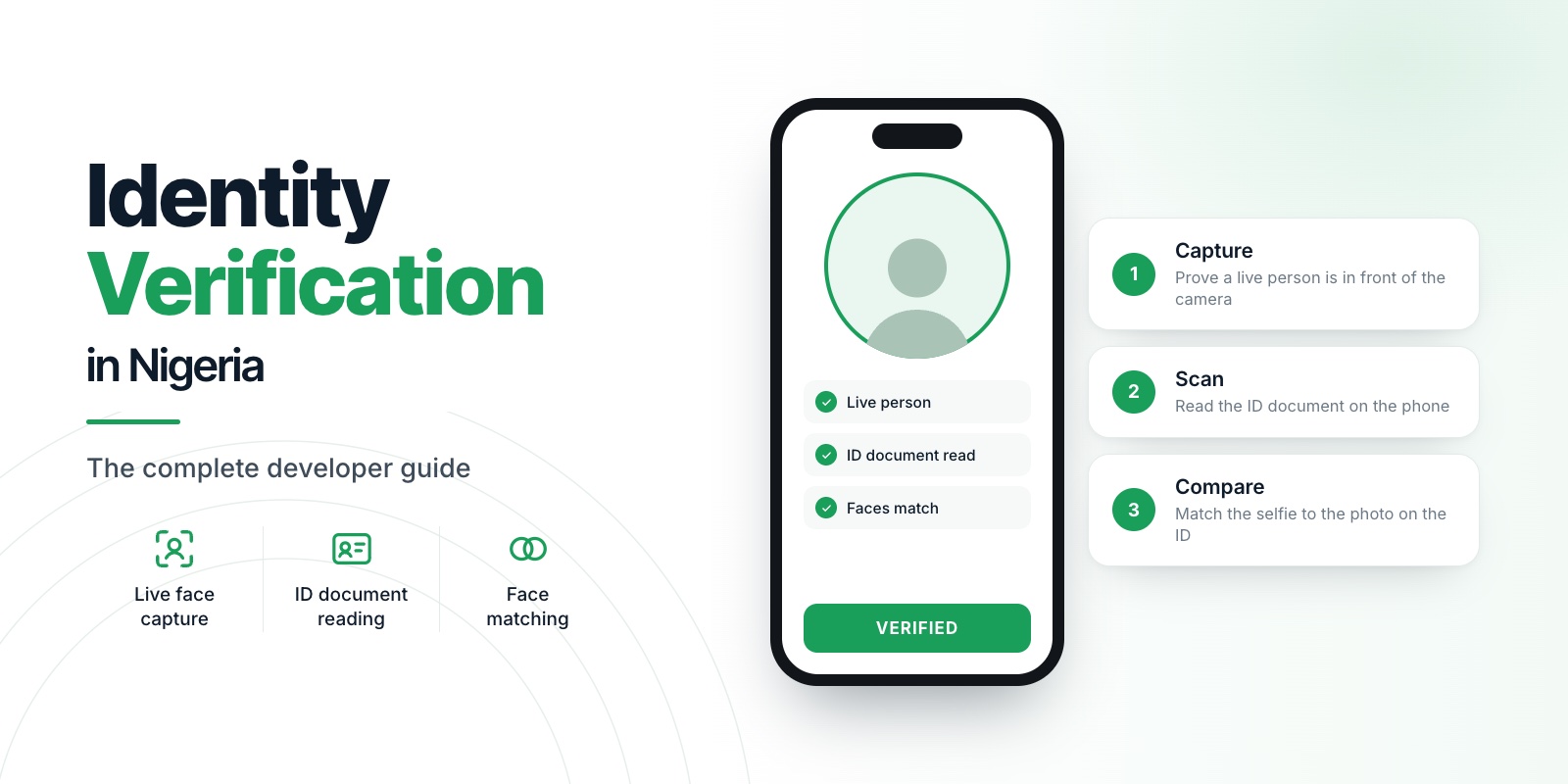
New to identity verification in Nigeria? Start with our complete developer guide.
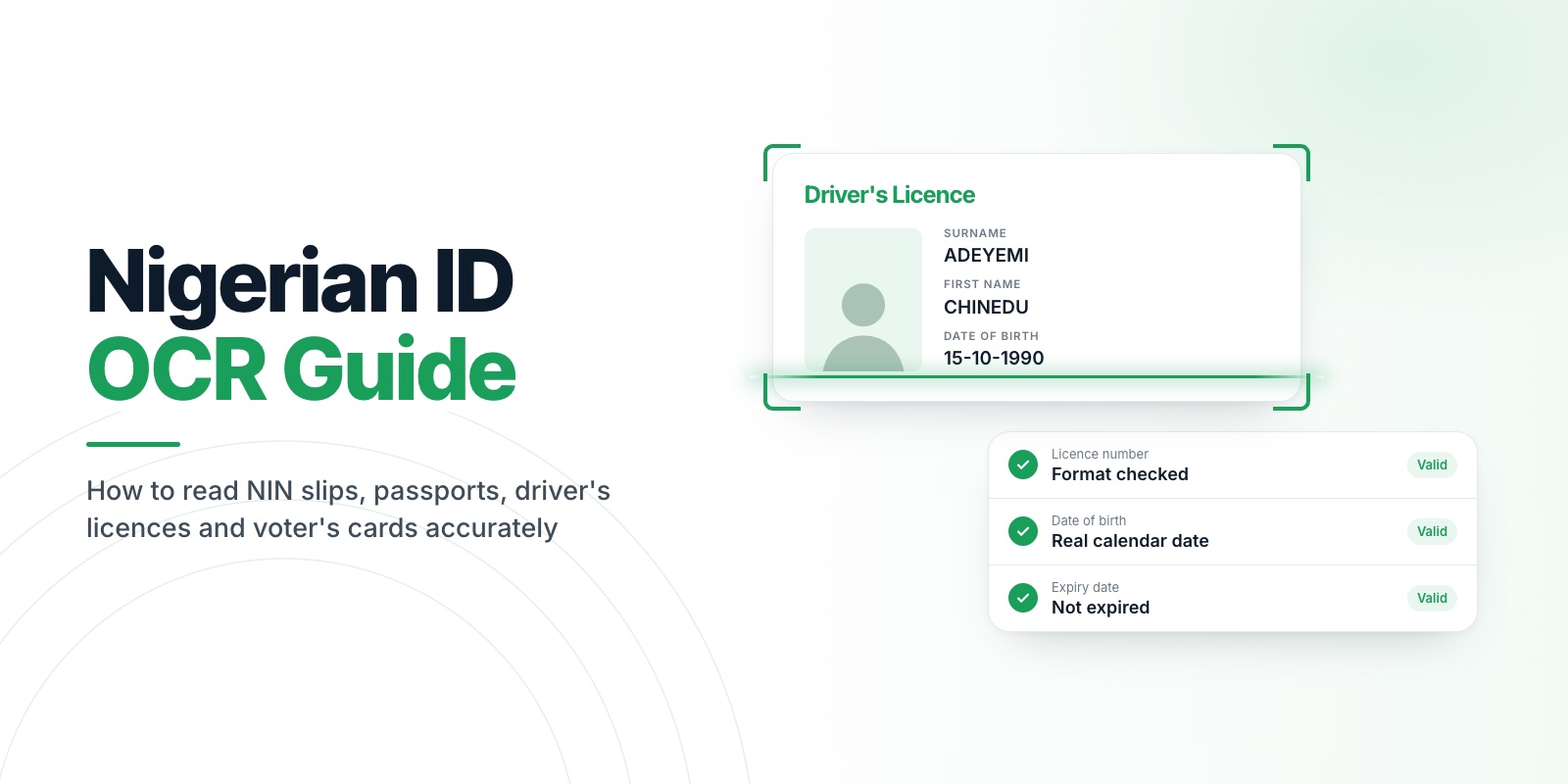
Mobile developers: scan Nigerian IDs on the phone, get named and checked fields back, and never upload a document image to read it. This guide explains how an on-device ID scanning SDK works, how to integrate Veris Scan on Android and what to do with every outcome. For the field-level detail on each document, read the Nigerian ID OCR guide.
Try it on your own documents. Create a free account and scan a real ID in the sandbox. No card needed. Start free
01Device or server: the real trade-off
You can read a document in two places.
- On the server. You upload the image, a service reads it and returns text. You can update the reader without an app release. But every document image now travels over the user's connection, lands on a server and becomes something you must secure, log carefully and eventually delete.
- On the device. The phone reads the document and returns fields. Nothing is uploaded to be read. The image can be handed to your app and dropped. You trade server-side flexibility for a much smaller data footprint and no dependency on the user's connection during the scan.
For identity documents, the on-device route usually wins on privacy and on drop-off, because a spinner over a slow upload is where users give up. It also keeps your obligations under the Nigeria Data Protection Act smaller, since less personal data moves.
02What an on-device pipeline does
A good scan is a pipeline, not a single OCR call.
- Guided capture. The camera checks the frame before it captures: the document must be inside the guide, sharp and bright enough, and free of glare. The user is told what to fix, such as "too much glare, try a different angle". The torch turns on in low light.
- Document detection. You can name the document type, or pass
AUTO_DETECTand let the SDK decide among the supported types. When it cannot tell, it says so rather than guessing. - Reading and extraction. Text is read from the image and mapped to named fields for that document.
- Validation. Each field must look like what it is. An NIN is 11 digits. Dates must be real dates and come back in one format. A value that fails validation comes back empty rather than wrong.
- Face photo. For documents that print a photo, the face is cut out and returned, ready for a face match.
- A signed result. The result carries a signature from the device, so your backend can tell it came from the SDK.
03Supported documents
Five identity documents and four proof-of-address documents:
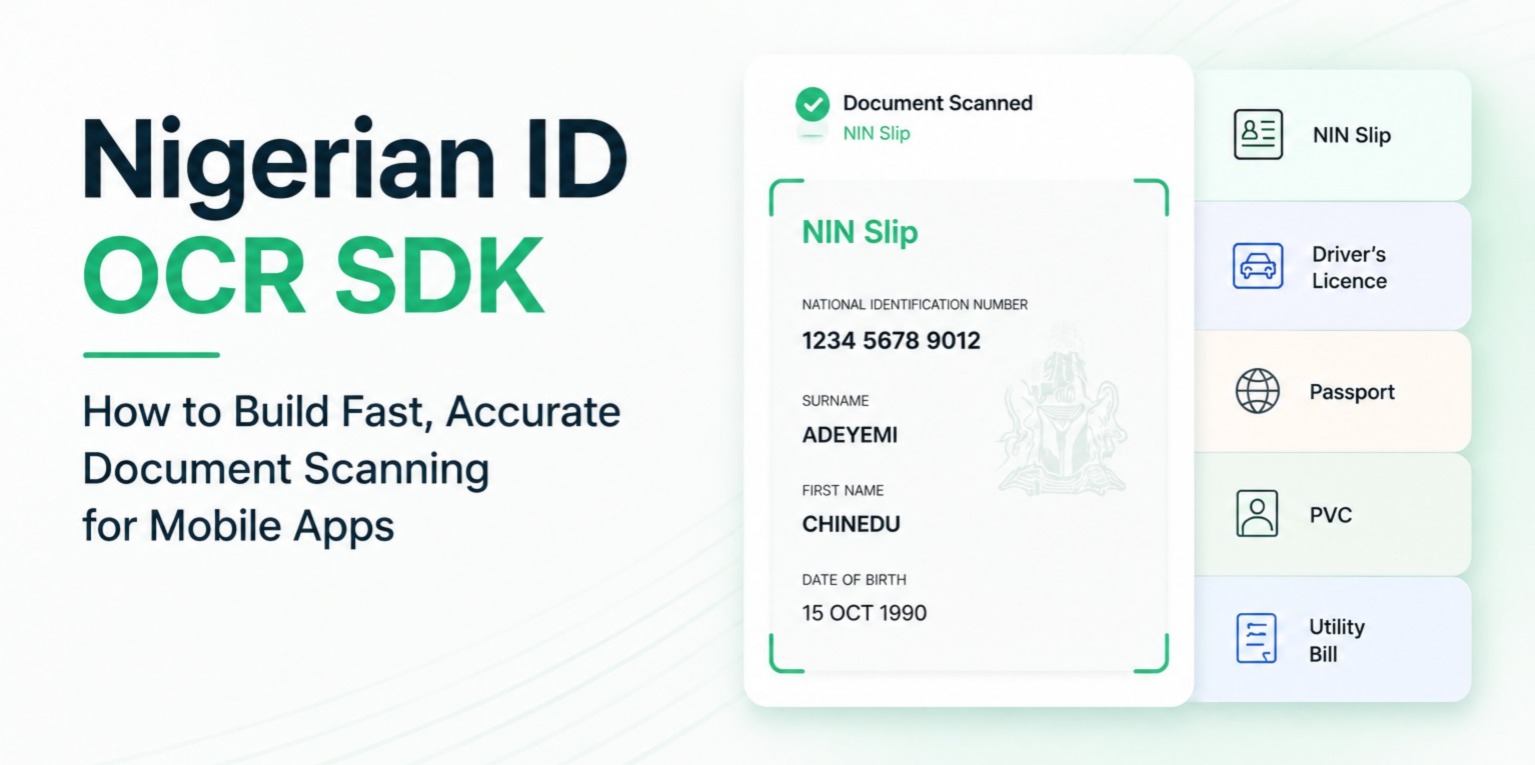
- NIN slip, national ID card, driver's licence, international passport and voter's card
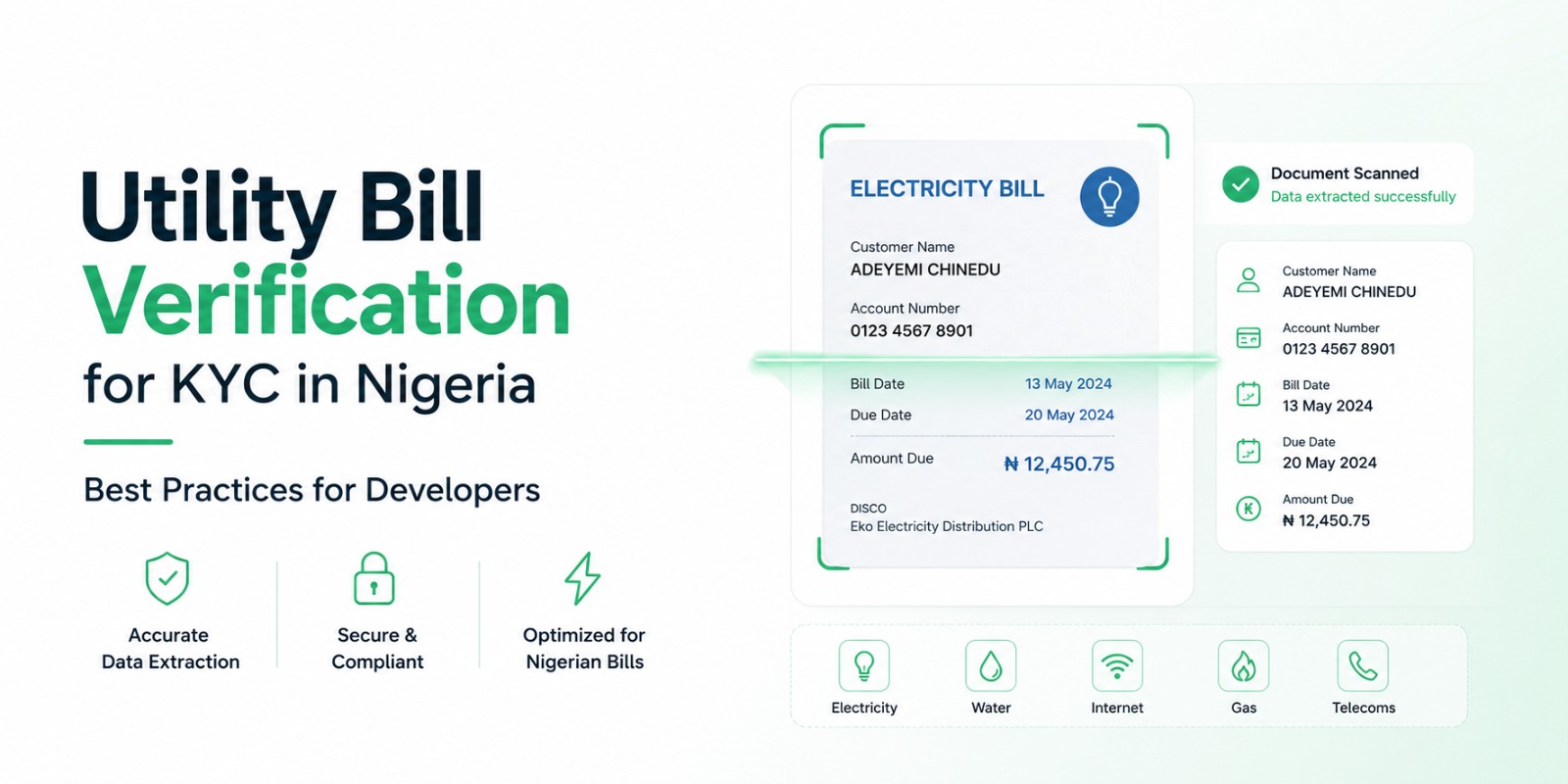
- electricity, water and waste bills and bank statements
Every identity document returns the same field names, and every bill returns another consistent set, so adding a new document type does not change your code.
04Integrating on Android
Initialise once, then start a capture with the document type. The call returns a typed response, either a result or a failure, and never throws into your app.
VerisScan.init(context = applicationContext, licenseKey = "veris_sandbox_xxxx")

VerisScan.startCapture(
    context = this,               // a FragmentActivity
    documentType = DocumentType.DRIVERS_LICENCE,
) { response ->
    when (response) {
        is ScanResult -> {
            val fields = response.idFields        // named, validated fields
            val face = response.faceImageBase64   // ready for a face match
        }
        is ScanFailure -> showError(response.userMessage)
    }
}
If your app already has the image, for example from an upload, use VerisScan.processImage(imageBytes, documentType) instead. Check the Scan page and the docs for the current Flutter, React Native and iOS steps.
05Handle every failure
A scan can fail for ordinary reasons, and each one should tell the user what to do.
- Document not detected, partially visible or wrong side: ask the user to place the whole document in the frame, or flip it.
- Too blurry, too dark or glare detected: ask for steadier hands, more light or a different angle.
- Type unknown: let the user pick the document type, or retry.
- Extraction failed: offer a retry, then a fallback such as manual entry.
- Plan or licence problems (for example a monthly limit reached or an inactive subscription): these come back as typed failures, so your app can show a clear message instead of failing silently.
ScanFailure carries a userMessage that is safe to show to the user.
06Where Scan stops
Scan reads a document. It does not tell you the document is genuine and it does not look the number up in any government database. Plan the rest of your checks with that in mind. Read Nigerian ID OCR Guide for what to validate on your side too.
07What waiting costs you
Typed ID fields are where signups leak. Each field is a chance to mistype or quit, and a wrong NIN fails later, after the user has gone. A generic OCR service gives you a block of text that your team must parse and keep parsing as layouts change.
08What you get
- Reading on the phone. No image upload to read a document.
- Checked fields in one shape for every document of a kind.
- The face photo, ready for Face Matching.
- A flat bill. Scan is unlimited from the Launch plan at $19 a month, with a free sandbox and a free Spark plan with monthly limits for small launches.
09The doubts you probably have
"Will it handle worn cards?" Guided capture and field validation exist for exactly this. Test your worst cards in the sandbox and judge the results yourself.
"Our users have low-end phones." Read Mobile Identity Verification on Low-End Android Devices, and test on the cheapest phone you can find.
"Can we trust it as proof the ID is real?" No. It is data extraction. We say so plainly, so you can add the checks your risk needs.
10Your next step
Scan the five documents your users carry most, in the sandbox, and look at the fields. In one sitting you will know whether it replaces the typing.
Create your free Veris account · Free to start · no card · all three products.
11FAQ
What is an on-device OCR SDK?
It is a library inside your app that reads text from a camera image on the phone itself. The image does not need to be uploaded for the reading to happen.
Which Nigerian documents can Veris Scan read?
The NIN slip, national ID card, driver's licence, international passport and voter's card, plus electricity, water and waste bills and bank statements.
Does Scan work with an uploaded photo as well as the camera?
Yes. Use the camera capture for guided scanning, or pass image bytes to processImage when your app already has the picture.
Does Scan verify that a document is real?
No. It extracts and validates the data printed on the document. It does not authenticate the document or check any database.